

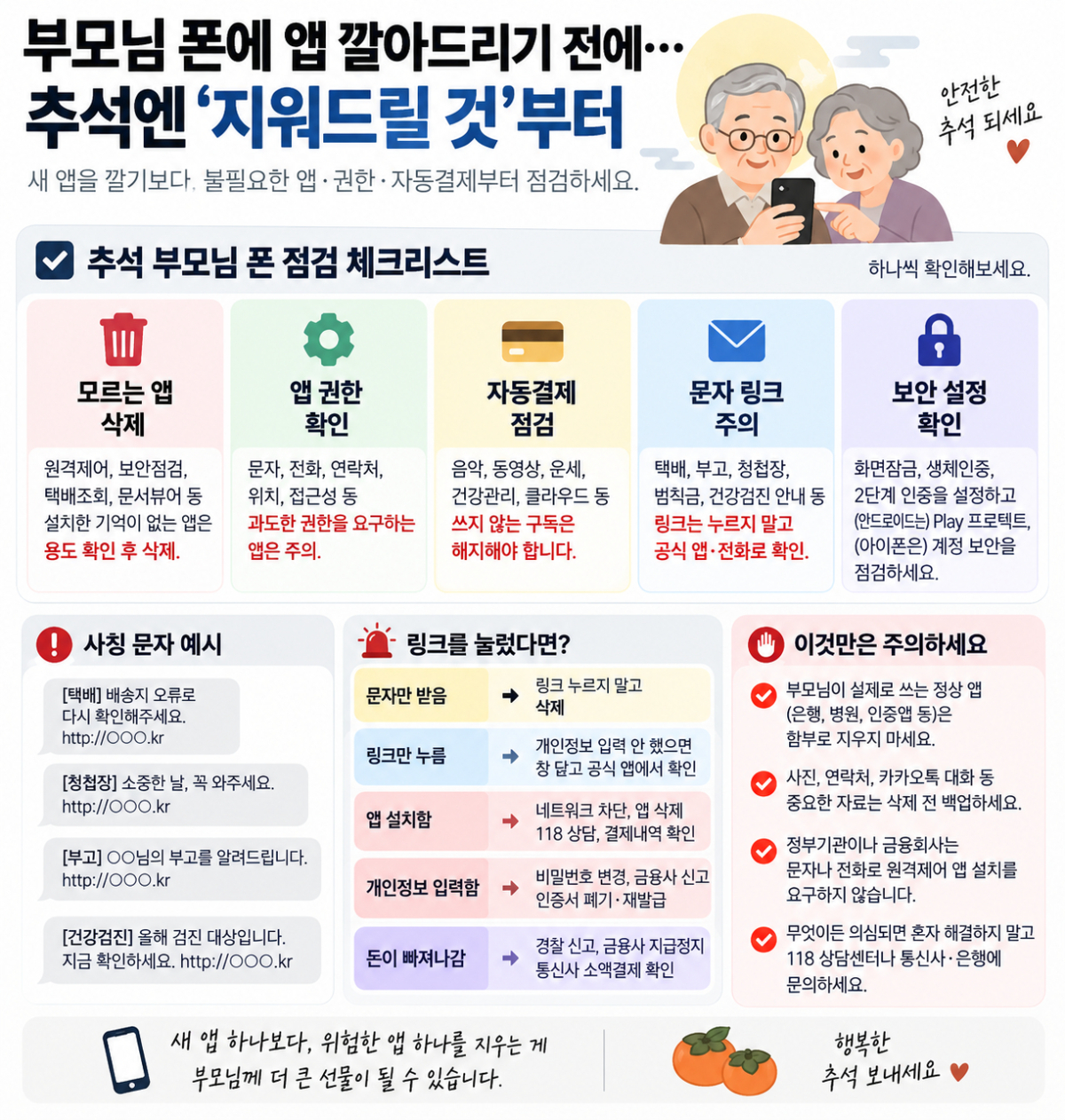
Before installing banking apps, train ticket reservation apps, or delivery apps on your parents' smartphones during the Chuseok holiday, there is something you must check first: verifying already installed apps. Apps with unknown sources, remote control apps, unused shopping apps, subscription apps that continue automatic payments after free trials, and apps with excessive permissions can pose significant risks.
Holidays are a period when smartphone scams tend to increase. Phrases closely related to family and daily life, such as deliveries, holiday greetings, wedding invitations, death notices, traffic violation fines, and health checkup notifications, are used as bait. The Korea Internet & Security Agency (KISA) warns that smishing or quscing impersonating text messages commonly used in daily life, such as those for deliveries or wedding invitations, can lead to infection by malicious apps, leakage of personal information, and secondary damage. If smishing is suspected, you can verify it using the Protection Nation smishing verification service or the 118th consultation center without an area code.
The problem stems from apps installed after clicking links. KISA warns that smishing malicious apps can steal phone numbers, text messages, and personal information, send or delete text messages by impersonating victims, and even perform remote control functions. If an app of unclear origin excessively requests permissions for texts, calls, storage, location, or accessibility, you should stop the installation. Government agencies or financial institutions do not request the installation of remote control apps via text messages or phone calls.
Keep Play Protect enabled and delete APK files whenever possible
The first thing to check on your parents' phones is "unknown apps." Apps with unfamiliar names, such as remote support or remote control apps; apps impersonating security checks or antivirus software; and apps that appear to be for package tracking, wedding invitations, or document viewers but you don't recall installing should be considered candidates for deletion. However, do not delete them immediately. They could be remote support apps installed by other children or apps for hospitals, banks, or authentication. You must confirm the app name, installation time, last usage date, and purpose with your parents before deleting.
Permissions are also important. On Android phones, you can check permissions for each app in settings. Be cautious of apps that have more than necessary access to texts, calls, contacts, location, notifications, or accessibility. Google also advises that Play Protect scans for harmful apps and protects apps and data on Android devices. If Play Protect is turned off, turn it on, and it is best to delete APK files received outside the Play Store whenever possible.
You cannot be careless with iPhones either. While the risk of installing APK files via text links is relatively lower compared to Android, issues remain with unfamiliar configuration profiles, calendar subscriptions, and entering account information through phishing sites. Apple advises that you may receive requests to install configuration profiles via email or webpages, and installed profiles can be reviewed and deleted if not intended. On iPhones, check VPN and device management, subscriptions, and Apple ID security status in settings.
If malicious app installation is suspected... Switch to airplane mode
Automatic payments are also a good item to check during Chuseok. Apps that your parents thought were free trials may be charging monthly. Representative examples include apps for music, videos, fortune-telling, health management, photo editing, and cloud storage. On Android, check the Google Play payment and recurring payment menu; on iPhones, check the subscription menu in the Apple ID. Delete unused apps and cancel subscriptions separately. Sometimes payments do not stop even if you delete only the app.
The response differs depending on whether you received a text or clicked a link. If you only received a delivery or death notice text, simply do not click the link and delete it. Verify actual delivery status through the courier company's official app or order history in the shopping mall. If you clicked the link but did not enter personal information or install an app, close the browser window and delete the text and visit records. However, if you installed an app or entered your name, resident registration number, bank account number, card number, or verification code, you must respond immediately.
If malicious app installation is suspected, first switch to airplane mode or disconnect network connections, and change passwords for banking apps and mobile payment services. You should also check mobile small-amount payment history and credit card approval records. KISA advises responding by deleting malicious files, revoking and reissuing certificates, checking mobile payment history with the mobile carrier, and notifying nearby acquaintances of the damage. If deletion is not possible, visiting a service center or performing an initialization may be necessary.
There are also points to be careful about. Do not arbitrarily delete photos, contacts, KakaoTalk conversations, common authentication certificates, hospital apps, or banking apps just because you are organizing your parents' phones. You could lose important data while trying to secure storage space. Especially for contacts and photos, back them up first, and since reinstalling and authenticating financial apps can be cumbersome, verify whether your parents actually use the app.

 in TECH
